

Keep Greeting Card Messages Separate from Generated Artwork
A greeting card can carry the right mood and still fail on the only line that matters. One misspelled name, wrong date, or changed word turns a warm design into an awkward apology. The risk grows when the message is flattened into generated artwork, because every copy correction can trigger a new visual version.
Separate message truth from visual atmosphere. Use an AI Photo Editor to develop the decorative scene, but keep names, dates, quotations, and final wording in editable text layers. The image can change without reopening an approved message, and a copy correction no longer requires another generated background.
Lock Names Dates and Final Wording First
Before choosing colors or prompts, write a small message ledger. It is the source of truth for every text-bearing element on the card. Copy names directly from the sender's note, preserve accents and punctuation, and confirm whether the event date belongs on the front or inside. If a quotation is included, record the approved wording rather than relying on memory.
|
Message field |
Approved value |
Visual rule |
|
Recipient name |
Exact spelling and capitalization |
Never place inside generated artwork |
|
Occasion line |
Approved phrase and language |
Keep editable until final proof |
|
Date or age |
Confirmed numeric value |
Check once in text layer and once in export |
|
Personal note |
Sender-approved final copy |
Do not paraphrase for layout convenience |
The ledger is deliberately plain. It does not need design notes, prompt experiments, or image choices. Its job is to prevent a visual revision from quietly becoming a copy revision.
Confirm One Person Owns the Final Copy
Name one person who can approve the final wording. A card often gathers suggestions from relatives, coworkers, or friends, and small edits can arrive through several chats. Without one copy owner, an old spelling can return after it was corrected. The owner should lock the ledger before artwork begins and reopen it only when the sender requests a real message change.
Give each approved change a short version note such as “surname corrected” or “date removed from front.” This is not a production diary. It is enough history to show why two near-identical exports contain different words.
A Flattened Card Turns One Typo into Rework
When words and artwork are generated as one flat image, every correction becomes expensive. Changing one letter may also change the flowers, border, lighting, or spacing. The next version may fix the name and break the date. A designer can end up comparing attractive variations while losing track of which one contains the approved message.
One Misspelling Can Trigger a Full Redesign
Names are especially vulnerable because readers notice them immediately. Even when generated lettering looks plausible at thumbnail size, a repeated stroke or merged character may appear in the final export. Keeping the name as editable type makes the correction local. The background remains approved, and only the faulty text changes.
This also protects nicknames and family spellings that an automated system cannot infer. A name that looks unusual is not an invitation to normalize it.
Translation Changes Need Room Without New Artwork
A translated wish may be longer or shorter than the original. If the message is baked into the picture, a language change can force another generation and disturb the whole composition. An editable text box can grow, wrap, or move within a protected quiet area while the artwork stays untouched.
Keep each language as a separate proof. Do not approve a card because the English version fits. The final reader sees the chosen language, so that version needs its own line-break and spelling check.
Generate Artwork Around a Protected Message Area
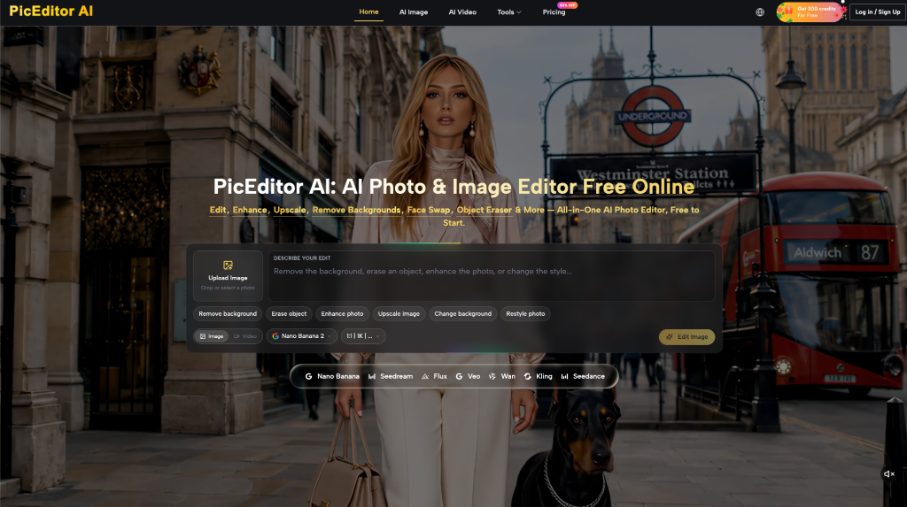
PicEditor AI uses an upload-and-prompt workflow and presents routes such as Change Background and Restyle Photo. The prompt asks what should change and what should stay. A Photo editor candidate should create atmosphere around a protected message area, not attempt to finalize the message itself. Keep Photo editor output in the art layer and the approved words in the ledger.
Upload a Reference with the Right Emotional Tone
Start with an image that already fits the relationship and occasion: a quiet floral arrangement, a warm table scene, a playful shape pattern, or a personal photograph the sender is allowed to use. JPEG, PNG, and WebP files are accepted up to 30 MB. Choose a source for its mood and composition, not because it already contains decorative text.
Keep a copy of that source. The generated candidate is easier to judge when the reviewer can see what changed and whether a personal detail disappeared.
Describe What Changes and What Remains Empty
Write the instruction around the art layer. For example: soften the background into a warm evening palette, keep the flower arrangement and camera angle, and leave a low-detail area on the right for a separate message. Avoid asking the generator to add the recipient's name, event date, or final wish.
The AI Photo Editor can return a candidate that supports the layout, but it cannot approve the emotional meaning of the message. That decision stays with the sender.
Keep the Quiet Area Clear at Final Size
Place a temporary text box over the candidate at the intended card size. Check contrast, line length, and breathing room. A quiet area that looks generous on a large monitor may become cramped on a phone image or a small printed card. Reject artwork that forces the type over a face, flower center, or high-contrast edge.
Rebuild the Card with Editable Text Layers
Bring the approved artwork into a layout tool and add the message from the ledger. Do not retype from memory. Paste each field, apply the chosen type style, and keep text as live text until the final export. This preserves the ability to fix a line break or accent without touching the image.
Set Artwork First Then Fit the Message
Lock the artwork position before fine-tuning the type. If the picture keeps moving, the text review never stabilizes. Fit the longest approved line first, then check shorter lines. A readable size and clean edge matter more than filling every empty corner with decoration.
Run the Ledger Check on the Export
Compare the exported card with the ledger, field by field. Read the recipient name aloud, verify the number and date, and compare punctuation. Then inspect the art for unexpected text-like marks that could be mistaken for another word. If such a mark competes with the real message, revise the artwork rather than explaining it away.
Ask one reviewer who did not build the card to repeat the visible name, occasion, and date. This is a reading check, not a request for general taste. A vague approval such as “looks lovely” does not verify the message.
For a bilingual card, run the check separately in both languages and do not assume matching line positions prove matching meaning. The reviewer should know the language being checked. PicEditor AI does not replace that language review; it only supplies the visual candidate behind the editable words.
Send Only the Version That Matches the Ledger
Archive the message ledger, approved artwork, editable layout, and final export together. That bundle makes a later correction local and traceable. The sender can update one line without rebuilding the whole design or guessing which background was approved.
PicEditor AI fits the art side of this workflow when the desired mood and protected message area are clear. It should not carry the burden of exact names or heartfelt wording. Keep those words editable, check the export against the ledger, and send only the card that preserves both the message and the mood.
